Official Manual · Getting Started
Shadowrocket Setup Guide
Import Subscriptions and Verify Connections
First import the information you already have, then choose a routing mode and connect. Follow the five steps below and check each result. If something goes wrong, return to the relevant step rather than changing several settings at once.
Step 01 · Add a selectable item
Add Server: Add a server or import a subscription
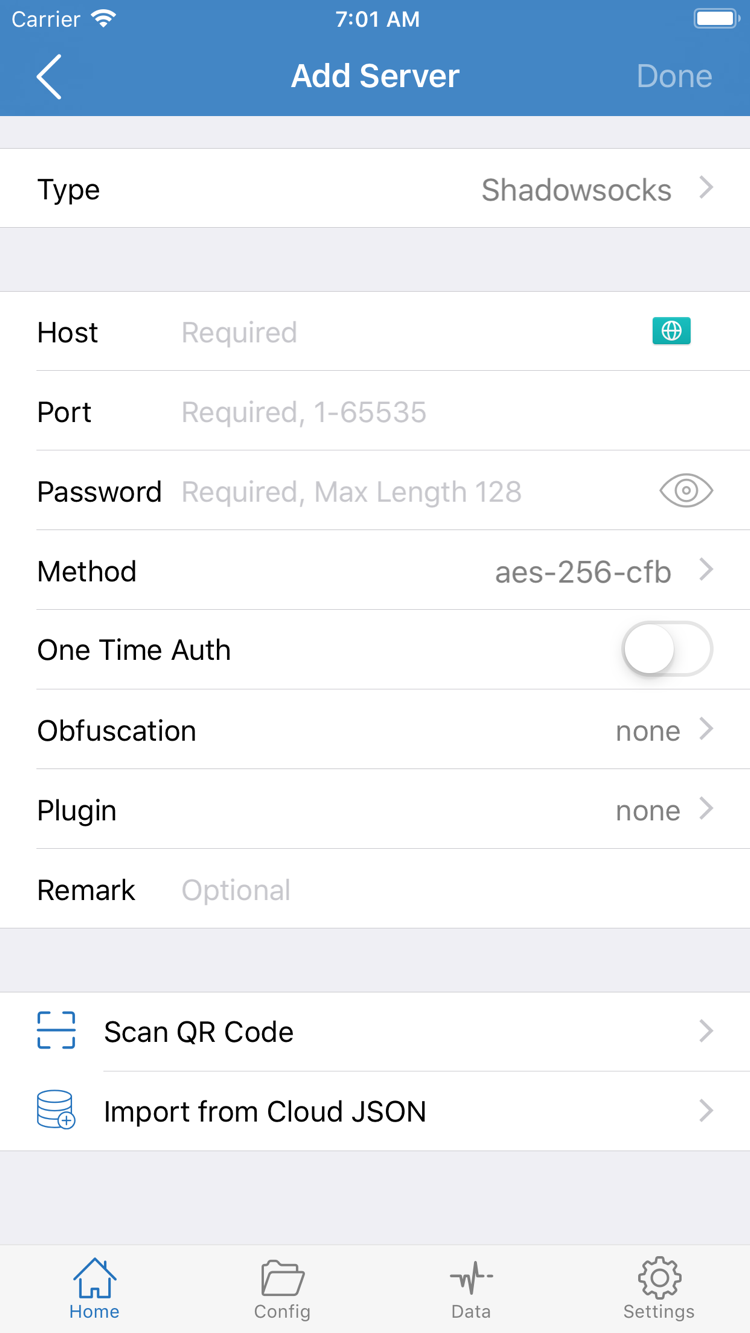
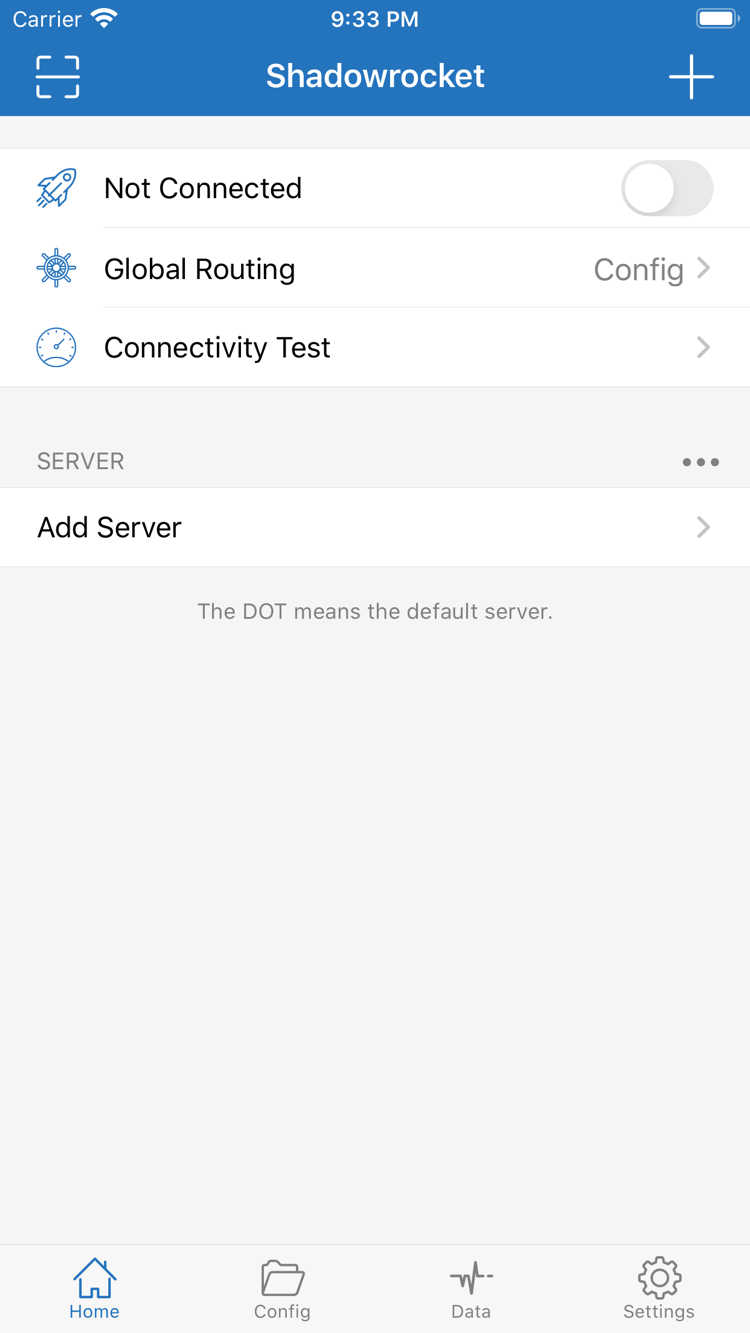
Open Shadowrocket and stay on Home. Do not turn on the connection switch at the top yet. Instead, find Add Server near the bottom of the screen. The information you have will usually be one of two types: the address, port, and authentication parameters for an individual server, or a subscription link that returns a list of servers. These require different entry methods. Do not paste an entire subscription link into Host, or infer other parameters from a server address alone.
For existing individual server details
Tap Add Server, check Type, then fill in the fields required for that type. Host, Port, Password, and Method in the screenshot are examples of fields for the selected type; the displayed fields may change when you switch Type. Enter the server domain or address in Host and the supplied port in Port. Password and Method must exactly match the details you have. For additional authentication, transport, or TLS options, follow the original parameters. Do not use the screenshot’s defaults as your own connection settings.
If you have a QR code, use Scan QR Code on the screen to read your own server details. After a successful scan, check Type, Host, and Port before saving. Import from Cloud JSON is for importing data in the corresponding format; it is not a general-purpose way to enter any webpage or subscription address. If you are unsure which format you have, check the information provided rather than repeatedly trying different options and creating duplicate entries.
For an existing subscription link
For a subscription, select Subscribe under Type in Add Server, find the URL field, paste your complete subscription link, and save. Check that the beginning, end, and parameters are all intact. Avoid including line breaks, spaces, or explanatory text. A subscription may contain personal access credentials. Do not post the full link publicly or show a QR code containing credentials when asking for help.
After saving, return to Home and wait for the list to load. If a refresh is needed, update the relevant subscription. The step is complete only when selectable server entries appear. Seeing a subscription name on the screen does not mean the link returned valid data. If an update fails, first check that the link is still valid and that the current network can reach the subscription address. Check whether the response is a login page or an error message. Do not assume an import failure means the connection protocol is incompatible.
Completion check: Your server appears in the SERVER section on Home, and opening its entry shows the expected type and address. Keep the original subscription or parameters for comparison during troubleshooting. You do not need to modify every entry at this stage.
Step 02 · Decide how requests are handled
Global Routing: Choose Config, Proxy, or Direct
Once your list is ready, return to Home and open Global Routing. This controls the overall routing mode; it is not where you add servers. The three modes are Config, Proxy, and Direct. Understand the difference before choosing one for your test. This helps avoid mistaking a routing mode that does not match your expectations for a problem with a correctly added server.
Config: Apply the current file’s rules
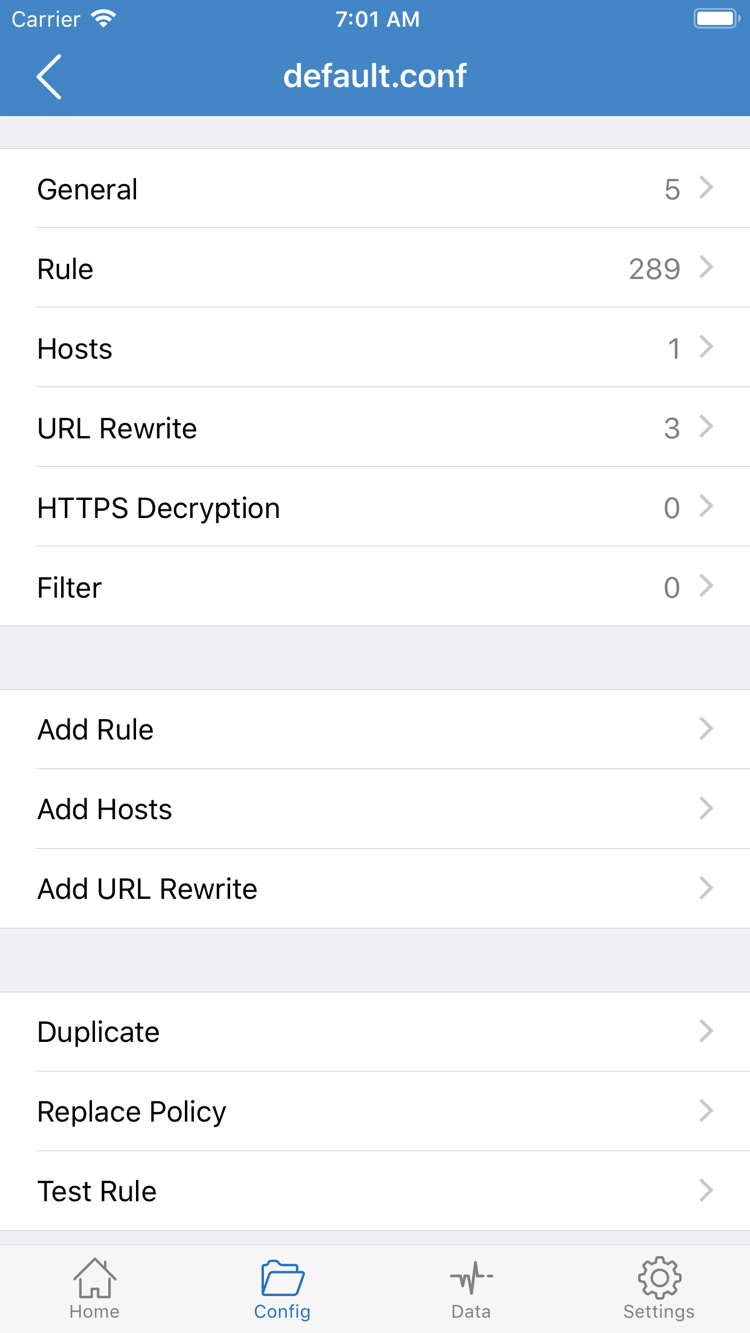
With Config selected, requests are handled according to the rules in the current configuration file. Some may use PROXY and others DIRECT. Open Config to confirm which file is currently selected, then check Rule. General, Rule, Hosts, URL Rewrite, and HTTPS Decryption in a configuration file have different purposes. When getting started, just check the selected file and its rules; you do not need to modify every section to connect.
A subscription and a configuration file are different things: a subscription usually provides a server list, while a configuration file describes behavior such as traffic routing. Importing a subscription does not automatically select a rule file that suits your needs. Likewise, the presence of a file in Config does not prove that every policy it refers to works in your current environment. Start with a configuration you understand and keep the original file before making changes so you can restore it.
Proxy and Direct: Check a specific route
Proxy is useful for checking whether a request can be handled through the selected proxy server. Direct lets you observe the result of connecting directly. Neither is simply a “faster” or “more stable” mode; results depend on the current network, server, and destination. Global Routing should not be treated as absolute proof of the path taken by all system traffic. Check actual requests as well.
If you already have a clear rule file, Config is suitable for everyday use. To distinguish a server connection issue from a rule issue, you can temporarily switch to Proxy and compare the result for the same destination. Restore your previous selection when the test is over. Do not change servers, switch modes, and modify DNS all in one test; even if the result changes, it will be hard to tell which setting caused it.
Completion check: You can identify the current Global Routing selection. If Config is selected, you should also know which configuration file is in use. To learn the rule syntax in detail, see the guide to matching rule keywords. This page focuses on completing the connection and verification steps.
Step 03 · Connect
Home: Select a server, then turn on the switch at the top
After importing and choosing a routing mode, return to Home. Select the server you want to use in the SERVER section and make sure the selected indicator is on the intended entry. If you have multiple subscription groups, check which group the entry belongs to so you do not select an older record with a similar name but different parameters. Then check Global Routing again to make sure it is still set to the mode you chose in the previous step.
Now turn on the connection switch at the top of Home. When connecting for the first time, the system may ask to add a VPN configuration. Confirm that the request was initiated by Shadowrocket, then approve it as prompted. If the system asks you to authenticate the device, complete that step in the system interface. This requires authorization on your device; do not enter your device password in the server fields. If you previously denied the request, try connecting again and check the exact message shown by the system.
Return to the app and check whether the status at the top changes from Not Connected. Also watch for error messages. Do not judge only by whether the switch briefly turns on: a switch that immediately turns off, a connection that remains in progress, and a connected status with no access are different types of issues and should be recorded separately. A VPN status in the system indicates that the relevant connection configuration is working, but it does not prove that all requests are going through the intended server.
While testing, pause other connection tasks that could change the system VPN configuration to keep the test environment clear. If you need to switch servers, stop the connection first, confirm that the new entry is selected, and then reconnect. This makes it easier to associate the result with the server. For the first verification, you can leave On Demand disabled. Decide whether to enable automatic connection conditions after the manual switch works consistently.
Completion check: The intended server is selected, the connection status at the top remains active, and no authorization or connection errors keep appearing. Even if the status looks normal, continue to the next step for an actual test. An established connection and access to a destination page are not the same thing.
Step 04 · Check status and results separately
Connectivity Test: Verify test results and actual access
Find Connectivity Test on Home, run a test, and wait for the result. It can help check how entries in the list respond, but the result depends on the selected test method, test destination, and current network. A response from one entry does not mean every website or app will work. One failed test does not prove that every server function is unavailable. Record what happened, then check actual access as well.
Check the basic network, then the destination request
Open a browser and use a page you can normally access to confirm that the device is online. If the Wi-Fi requires a login or acceptance of terms, complete its authentication process first. Then, while connected, open the page you want to test and wait for its main content to load—not just a cached title or old content. Refresh the page if needed, and note whether only images, login, or a specific subpage fails.
With Config selected, a single page may make requests to multiple domains, and each request may match a different rule. Opening one page successfully does not prove that all traffic is using PROXY. A failed page does not mean the client is completely disconnected. To check routing, use the request records available in the app to review the destination, matching rule, and policy, and see whether the result matches the current Rule settings.
Change one thing at a time
If the result is unclear, keep the same destination and server, and change only one condition. For example, compare Direct and Proxy on the current network, or keep Config unchanged and replace just one server you already have. Record the current mode and what happened each time, then restore your everyday settings after testing. Avoid opening many pages, repeatedly tapping update, or rapidly switching the connection; these actions can make results harder to interpret.
Completion check: You can confirm all three: “the connection stays active,” “the destination is accessible,” and “the routing behavior matches expectations.” If only one of these is true, continue to the troubleshooting section and check the corresponding failure stage. You do not need to delete all your settings and start over.
Step 05 · Start where the problem first occurs
Settings and common troubleshooting steps
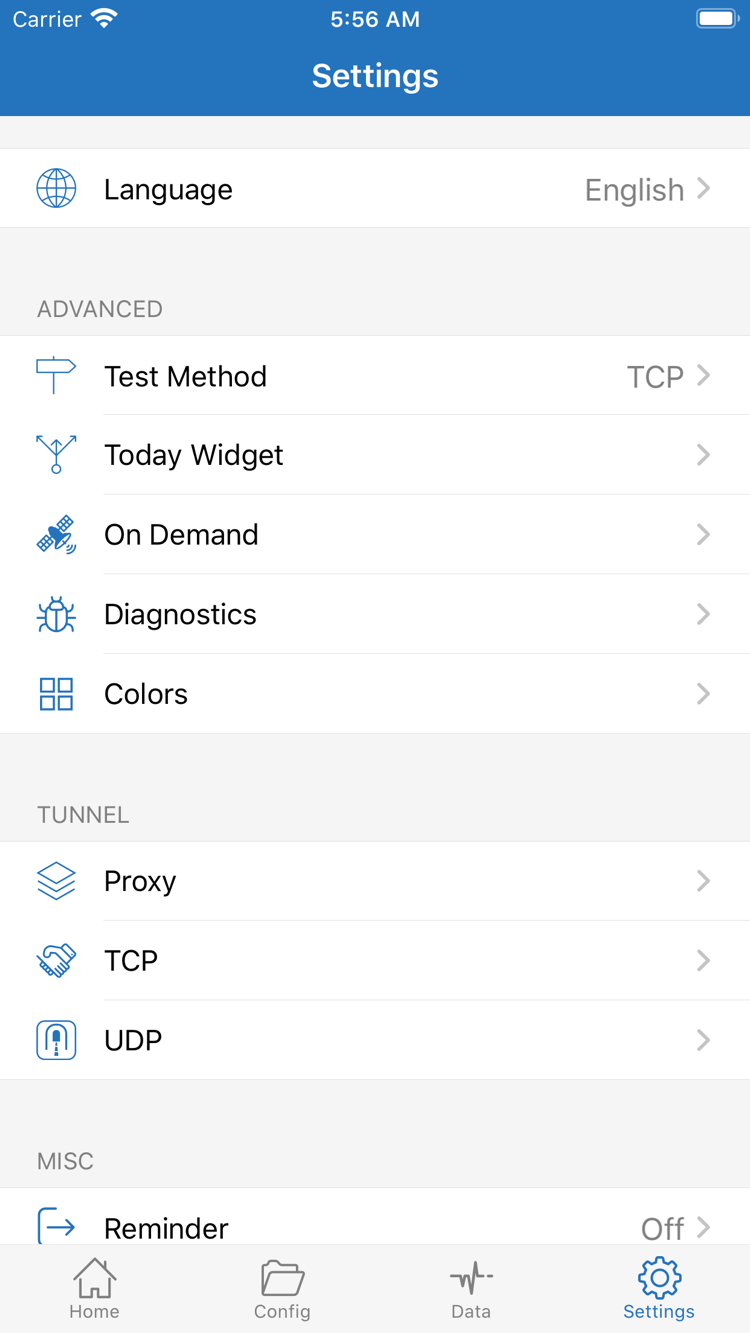
Start troubleshooting by identifying the first step that did not go as expected. No server after import, no test response, a switch that will not stay on, and limited access after connecting each require different checks. Return to the relevant section of this guide rather than resetting everything. Test Method, On Demand, Diagnostics, Proxy, TCP, and UDP in Settings are available for further checks; you do not need to change them all the first time you use the app.
Import failure: Check the input and subscription response
If no selectable entry appears on Home, return to adding and importing. Check that you chose the right Type, the subscription URL is complete, and the server Port contains no extra text. If a subscription update fails, check whether the current network can reach the link and whether it has expired or needs to be regenerated. If only one entry is missing, check the data the subscription actually returned. Do not try to fill the gap by switching protocol types at random.
Test failure: Check Test Method and server parameters
If an entry is present but Connectivity Test gives an unexpected result, check Test Method in Settings and determine what the current test measures. Different methods may produce different results, so do not choose a server for everyday use based on one number alone. Compare the address, port, authentication fields, and transport settings with the original details. An extra space or an outdated parameter can cause a failure. For TLS, also check that the device’s date and time are correct; a time discrepancy can cause certificate verification to fail.
Switch turns off: Check authorization and system connection status first
If the switch at the top will not stay on, confirm that you handled the system VPN configuration request, then check whether another connection task is changing the system configuration. Temporarily turn off On Demand and try a manual connection to see whether the same issue persists. If you need to check Diagnostics, first note when the failure occurred and what you were doing, then read the nearby error messages. Do not treat an old record unrelated to the current action as the cause.
Connected, but some destinations fail: Check rules, DNS, and server capabilities
If only certain destinations have issues, first check Global Routing, then review the rule order, policies, and DNS settings in the current Config. Keep the original file and compare the same server once with Proxy: if the comparison works but Config does not, check the rules and related settings first. If both fail, check the server and current network. This approach helps narrow down the cause; it does not mean one mode should always replace the other.
If only real-time communication, a specific app, or certain content has issues, also check the relevant settings, such as TCP and UDP, and whether the server supports them. Do not assume every type of traffic works just because a webpage opens. Change only one DNS setting at a time and record its original value so you can restore it if the change fails. Leaving unfamiliar advanced options unchanged makes it easier to identify the cause than changing several parameters at once.
Completion check: You can narrow the issue down to one layer: input, basic network, connection authorization, server, or rule settings, and keep a reproducible set of steps. App Store access, account, and purchase restoration issues are not connection problems; see the genuine app guide. If you have identified a rule-order issue, continue with the guide to matching rules.